I create a composition by synthesizing existing external or internal ideas. External ideas are experiences and practices from sources other than the creator, while internal ideas are those from the creator’s previous work. When a person practices and repeats synthesizing external and internal ideas, a new idea, a new sound, and an artistic style are developed. This repetition of synthesis within and among the creative works is also a process of refinement – keep and improve the good ones, and shelve the bad ones.
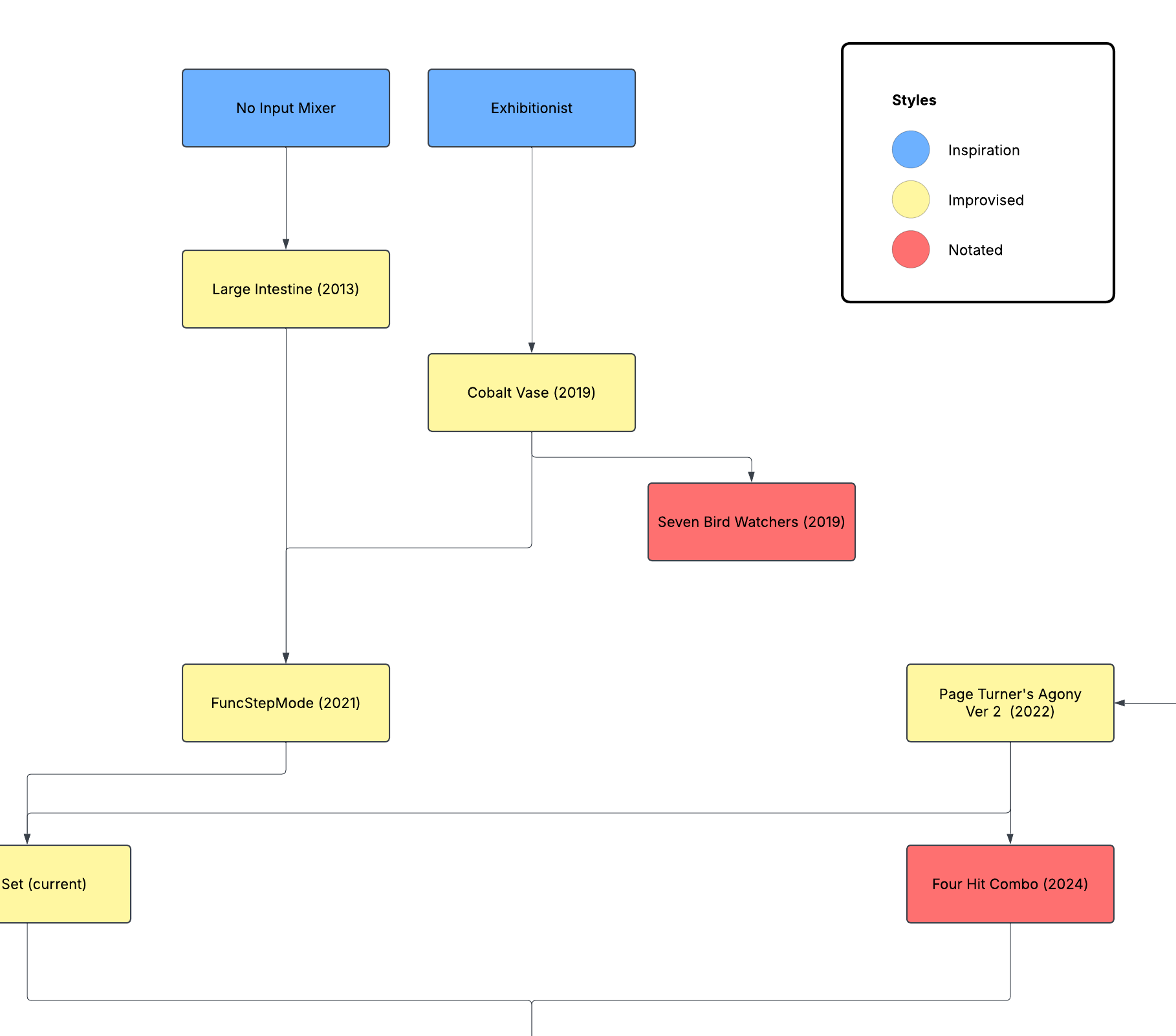
In this blog, I will share my synthesis and refinement process by showing how six pieces from 2013 to 2024 are connected. A diagram is more effective than prose for this. Below is an interactive flowchart that connects my creative works and their external and internal ideas. Click the link next to each box to listen to the corresponding piece. Zoom in and out using the mouse scroll.
To open the chart in a new tab, click HERE.
In the linked diagram, the blue boxes represent external ideas. They are music, technologies, and life events that inspired me to create. I did an opening act for Toshimaru Nakamura in the early 2010s, and I was awestruck by Nakamura’s no-input mixing board performance. I wanted to know more about it, so I wrote Large Intestine (2013) for the no-input mixer and SuperCollider. Jeff Mills’ TR-909 performance in Exhibitionist is one of the best electronic music performances, so I wanted to make my version of a drum machine solo piece after it. The result was Cobalt Vase (2019).
Yellow boxes and red boxes represent two types of compositions. Improvisational pieces, the yellow boxes, are written for me to perform on stage. There are no written instructions, and every performance should sound similar but different. Repeated performances of an improvised work reveal forms and patterns that I can write and share with others. They become internal ideas for the notated compositions written for performers other than me.
The notated works are labeled as red boxes in the chart. Cobalt Vase for drum machine solo is the foundation for Seven Bird Watchers (2019), a piece written for three or more drum machines. The performers still improvise in Seven Bird Watchers, but they do so within the limits and ranges instructed in the score. Another electronic ensemble composition in the chart is Four Hit Combo (2024). It was composed through a similar process as Seven Bird Watchers – many performances of Page Turner’s Agony (2019) revealed what is important in that piece, and I notated that for an electronic ensemble.
The blocks representing Page Turner’s Agony have different shades of yellow. I used gradient color to distinguish the premiere version and the refined post-premiere version. A new idea can result in a presentable work, but I prefer refining the premiered work a few times so that they are ready for repeat performance. In 2021, my son showed me a video about a sound effect in a game. I wanted to show my son that a cool dad like me can make the sound effect he was fascinated by. The result was a version 1 of Page Turner’s agony. The first version was good enough to be premiered and published. I had a few gigs to present the work, but I realized that the performing ergonomics was not good. My eyes and fingers had to be on the computer screen. With a few adjustments, I made a version 2 that I could perform with my eyes closed.
All creative process uses experiences, training, and practices gained from the creator’s previous work. But it is important to be conscious of it. Creating a completely new work without connection to the past is difficult, if not impossible. I liked the sounds I made in Cobalt Vase and Large Intestine, so I combined the two in Func Step Mode (2021). Func Step Mode is the featured piece that showcases my current performance style. I often use the piece as the finale of a 20-30 minute solo set. The build-up to the finale often incorporates a version of Cobalt Vase and Large Intestine. Since 2020, I have incorporated Page Turner’s Agony as an opening piece. In other words, my solo concert is going through the process of synthesis and refinement.
The chart and the explanation show that my creative works are connected. It sounds obvious, but it is important to be conscious of it. I had to analyze my past work to find the evidence and convince myself. Going through the cycle of creation, evaluation, and refinement is all I do as a musician. I loop those three steps in composing, performing, and presenting.
Extra: the box in the bottom, currently named Computer Music Practice, is a large-scale work in progress. Take a peek!